
How to Connect PHP to MySQL Database in XAMPP
Connecting PHP to MySQL is essential for dynamic web applications. This tutorial shows you how to create a database connection using MySQLi, update database credentials, and test the connection in your browser.
How to Connect PHP to MySQL Database in XAMPP
Installed XAMPP and created your database but not sure how to connect it with PHP? Let's fix that in the next few minutes. Connecting PHP to MySQL is essential for building dynamic web applications that can store and retrieve data. Once connected, you can build login systems, content management systems, e-commerce sites, and much more. Now it is time to connect that database with PHP and make it actually useful.
In this tutorial, you will use a ready-made connection file, update the database name, and test the connection in your browser. To understand this tutorial properly, it is helpful to have XAMPP installed and running and a database already created in phpMyAdmin.
Step 1: Start Apache and MySQL Services
First, open your XAMPP control panel. Make sure Apache and MySQL are running. If not, click Start for both.
1. Open XAMPP Control Panel
2. Click "Start" next to Apache (should turn green)
3. Click "Start" next to MySQL (should turn green)
4. Both services must be running for PHP to connect to the database
Step 2: Download the Connection File
Instead of writing everything from scratch, you will use a ready-made file. Go to this GitHub link and download the file named connect.php.
GitHub Repository: https://github.com/techyall/simplephp/
Download file: connect.php
Step 3: Place the File in htdocs
Now open your htdocs folder. Inside htdocs, create a new folder called files. Place the connect.php file inside the files folder.
XAMPP Installation Directory:
Windows: C:\xampp\htdocs\files\connect.php
macOS:   /Applications/XAMPP/htdocs/files/connect.php
Linux:   /opt/lampp/htdocs/files/connect.php
Step 4: Update the Database Credentials
Open the connect.php file. You will see the database connection code. We define four things: Host, Username, Password, and Database name. Change only the database name to "users" (or your database name). Keep everything else the same.
Connection code in connect.php
Step 5: Run the File in Your Browser
Now open your browser and type the following address. If everything is correct, your database will connect successfully.
http://localhost/files/connect.phpIf the connection is successful, you will see the message: "Connected successfully". If it fails, you will see an error message explaining the problem.
Understanding the Connection Code
| Variable | Value | Description |
|---|---|---|
| $host | localhost | The database server address (local means your own computer) |
| $user | root | Default MySQL username in XAMPP |
| $password | (leave empty) | Default MySQL password in XAMPP (leave blank) |
| $database | users | Your database name (change this to match your database) |
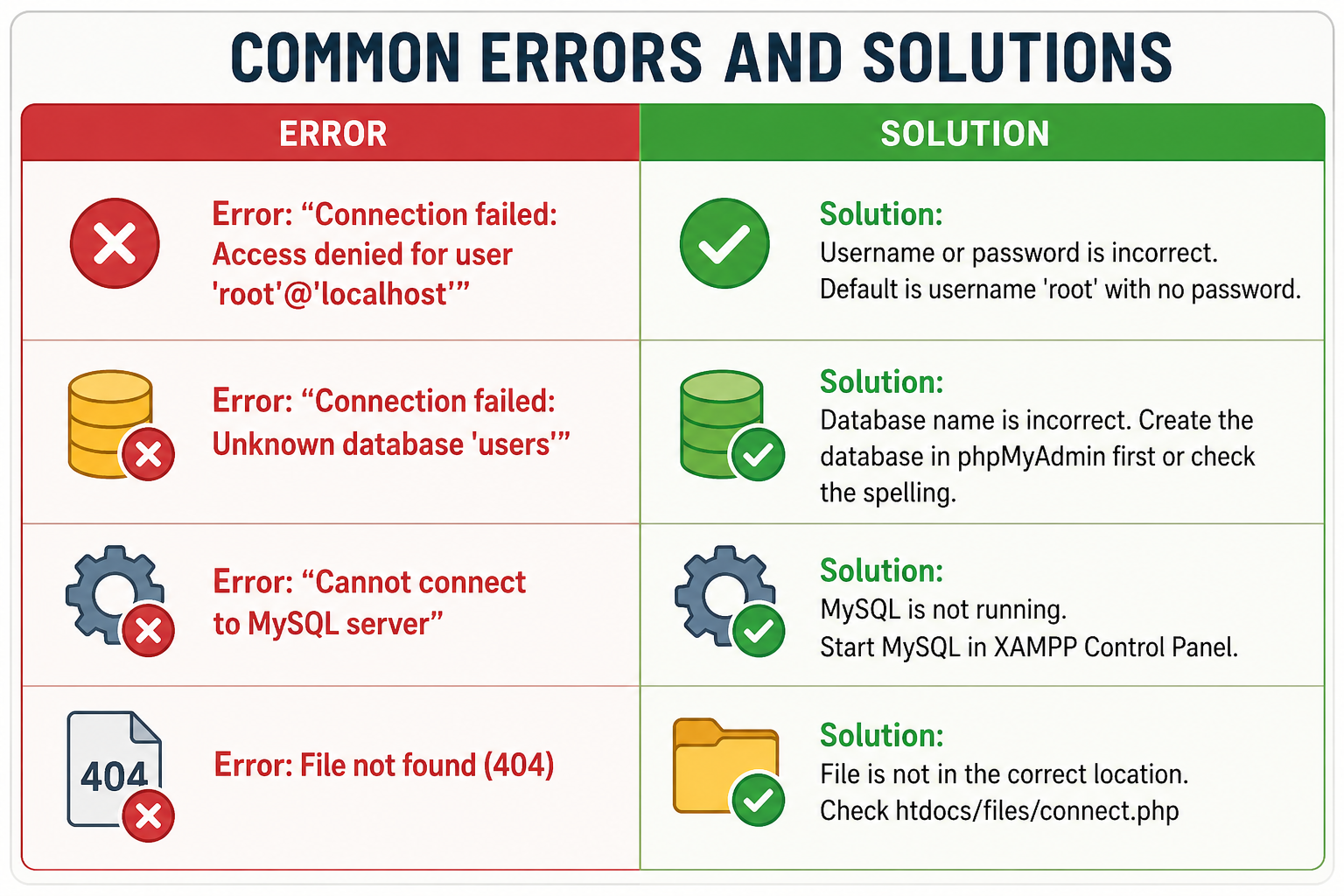
Troubleshooting Common Errors
If your database does not connect successfully, check these common issues.
Frequently Asked Questions
- What is the difference between MySQLi and PDO?
MySQLi works only with MySQL databases. PDO works with 12 different database systems. For beginners using XAMPP, MySQLi is simpler and recommended. Learn more about database abstraction for advanced usage. - Why is the password empty in XAMPP?
XAMPP is configured for local development with no password for the root user by default. For production servers, always set a strong password. See database security for best practices. - What does "localhost" mean?
localhost refers to your own computer. It is the same as the IP address 127.0.0.1. When PHP connects to localhost, it connects to MySQL on the same machine. - Can I use this code on a live server?
Yes, but you must change the database credentials to match your hosting provider's settings. You will also need to set a strong password. - What should I learn next after connecting PHP to MySQL?
After connecting, explore database fundamentals, SQL queries, and database normalization to design better databases.
You have successfully connected PHP to your MySQL database. The connection file using MySQLi is simple and reliable for local development. Remember to keep Apache and MySQL running in XAMPP whenever you work on PHP database projects.
Now that your database is connected, you can start building dynamic web applications that store and retrieve user data. Practice by creating databases in phpMyAdmin, writing SQL queries, and displaying data on web pages. With this foundation, you can build login systems, content management systems, and much more.
To deepen your understanding, explore related topics like database fundamentals, SQL basics, database normalization, and database security best practices.