
Real-World Git Workflow: How Teams Use Git in Production
A practical workflow includes branching, committing, pushing, and creating pull requests in team environments.
Real-World Git Workflow: How Teams Use Git in Production
Understanding Git commands individually is useful, but seeing how they fit together in a real development team is what transforms theoretical knowledge into practical skill. In professional environments, Git is not used in isolation. It is integrated with issue tracking, code review, continuous integration, and deployment pipelines. This guide walks through a complete real-world workflow from starting a new feature to deploying to production.
This workflow is based on how thousands of development teams actually work every day. It assumes you are working with a team, using a platform like GitHub, GitLab, or Bitbucket, and following a feature branch workflow with pull requests. To understand this workflow fully, it is helpful to be familiar with Git core concepts, branching fundamentals, and basic Git workflow.
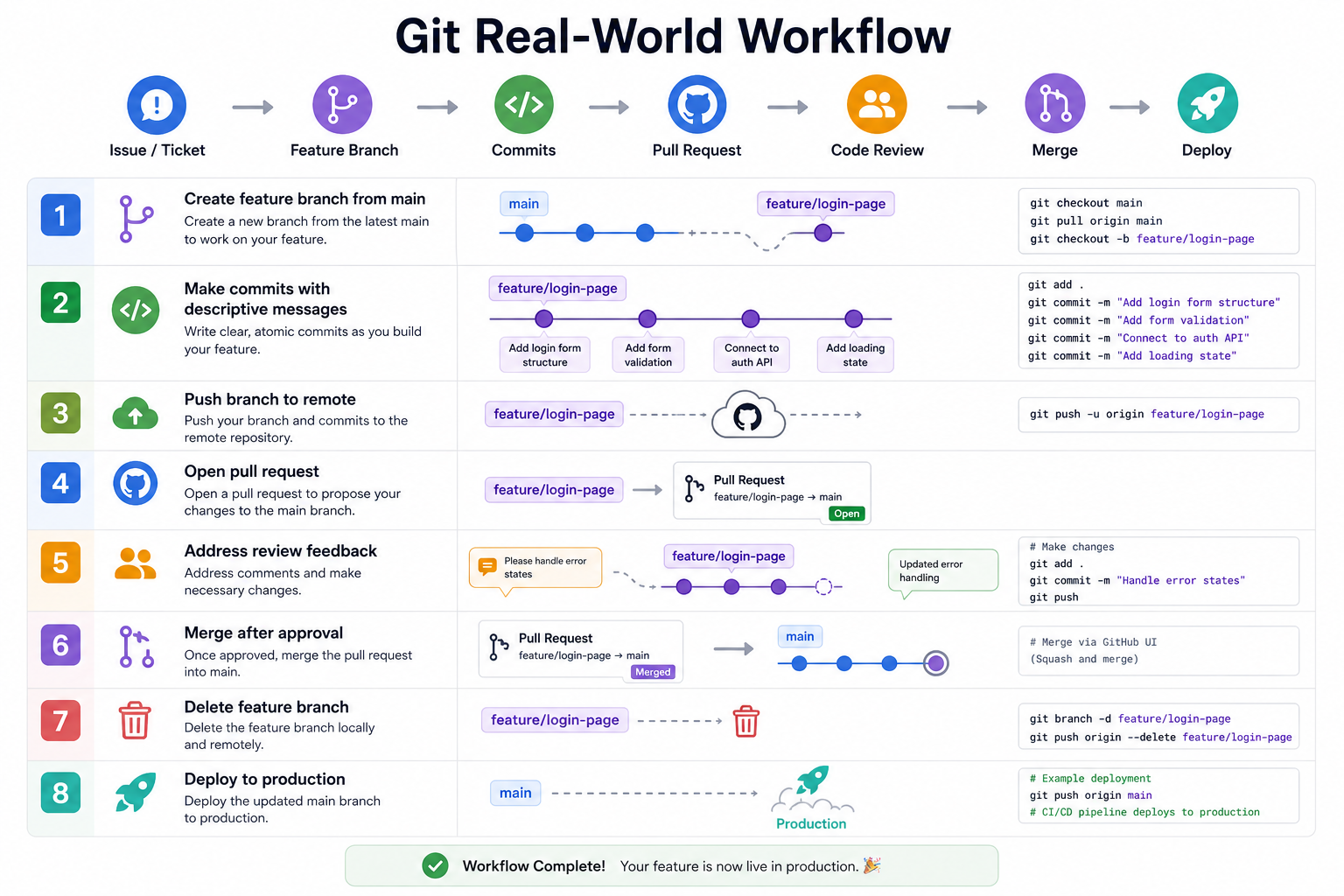
The Complete Feature Development Workflow
This is the most common workflow in professional development. Every new feature, bug fix, or improvement follows this same pattern.
Step 1: Start with an Updated Main Branch
Before creating a new branch, ensure your local main branch is up to date with the remote. This prevents working from an outdated base.
git checkout main
git pull origin main
Step 2: Create a Feature Branch
Create a new branch for your work. Name it descriptively, often including the issue or ticket number.
git checkout -b feature/GH-1234-add-login-pageStep 3: Make Changes and Commit
Write code, make changes, and commit them in small, logical units. Each commit should represent one meaningful change.
# After making changes
git add src/login.js
git commit -m "feat(login): add login form component"

# Make another change
git add tests/login.test.js
git commit -m "test(login): add unit tests for login form"
Step 4: Push the Branch to Remote
Push your branch to the remote repository. This makes it visible to your team and allows you to create a pull request.
git push -u origin feature/GH-1234-add-login-pageStep 5: Keep Your Branch Updated
While you work, others may merge changes to main. Keep your branch updated to avoid merge conflicts later.
# Fetch latest main
git checkout main
git pull origin main

# Update your feature branch
git checkout feature/GH-1234-add-login-page
git merge main

# Or rebase for cleaner history
git rebase main
Step 6: Create a Pull Request
Once your work is ready for review, create a pull request on your Git hosting platform. Include a clear description of what changed and why.
## Description
Adds login page with email/password authentication.

## Changes
- Created LoginForm component
- Added form validation
- Integrated with auth API

## Testing
- Added unit tests for form validation
- Manual testing completed

## Related Issue
Closes #1234

## Screenshots
[Attach screenshots if UI changes]
Step 7: Address Code Review Feedback
Team members review your code and leave comments. Address feedback by making additional commits to the same branch. These commits automatically appear in the pull request.
# Make requested changes
git add src/login.js
git commit -m "fix(login): address PR feedback - improve error handling"
git push origin feature/GH-1234-add-login-page
Step 8: Merge the Pull Request
After approval, merge the pull request. Most teams use squash merge to keep history clean, or regular merge to preserve all commits.
# Create merge commit (preserves all commits)
git checkout main
git merge feature/GH-1234-add-login-page

# Squash merge (combines all commits into one)
git merge --squash feature/GH-1234-add-login-page
git commit -m "feat(login): add login page functionality"

# Rebase and merge (linear history)
git checkout feature/GH-1234-add-login-page
git rebase main
git checkout main
git merge feature/GH-1234-add-login-page
Step 9: Delete the Feature Branch
After merging, delete the feature branch both locally and remotely to keep the repository clean.
# Delete remote branch
git push origin --delete feature/GH-1234-add-login-page

# Delete local branch
git branch -d feature/GH-1234-add-login-page
The Bug Fix Workflow
Bug fixes follow a similar pattern but are often smaller in scope and may require faster turnaround, especially for critical issues.
# Create bugfix branch from main
git checkout main
git pull origin main
git checkout -b bugfix/GH-5678-fix-login-error

# Fix the bug and commit
git add src/auth.js
git commit -m "fix(auth): handle null response in login endpoint"

# Push and create pull request
git push -u origin bugfix/GH-5678-fix-login-error

# After merge, delete branch
git checkout main
git pull origin main
git branch -d bugfix/GH-5678-fix-login-error
The Hotfix Workflow
Hotfixes are urgent fixes that need to go directly to production without waiting for the normal release cycle. They are branched from main and merged back immediately.
# Create hotfix branch from main
git checkout main
git pull origin main
git checkout -b hotfix/critical-security-patch

# Apply the fix
git add .
git commit -m "hotfix(security): patch SQL injection vulnerability"

# Merge directly to main (after approval)
git checkout main
git merge hotfix/critical-security-patch
git push origin main

# Also merge to any active release branches
git checkout release/v2.0
git merge hotfix/critical-security-patch
git push origin release/v2.0

# Delete hotfix branch
git branch -d hotfix/critical-security-patch
The Release Workflow
For teams that do regular releases, a release branch isolates stabilization work from ongoing feature development.
# Create release branch from main
git checkout main
git pull origin main
git checkout -b release/v2.0.0

# Make release-specific changes (version bumps, docs)
git add .
git commit -m "chore(release): bump version to 2.0.0"

# Push release branch for testing
git push -u origin release/v2.0.0

# When ready, merge to main and tag
git checkout main
git merge release/v2.0.0
git tag -a v2.0.0 -m "Release version 2.0.0"
git push origin main --tags

# Delete release branch
git branch -d release/v2.0.0
git push origin --delete release/v2.0.0
Handling Merge Conflicts in Real Workflows
Merge conflicts are inevitable in team environments. Here is how to handle them when they appear during a pull request.
# When your pull request shows conflicts
git checkout main
git pull origin main
git checkout feature/your-branch
git merge main

# Git shows conflict markers in affected files
# Open each file and resolve conflicts
# Look for <<<<<<<, =======, >>>>>>> markers

# After resolving, stage and commit
git add resolved-file.js
git commit -m "Merge main and resolve conflicts"

# Push the resolved branch
git push origin feature/your-branch

# The pull request updates automatically
Continuous Integration Integration
In real-world workflows, every push to a branch triggers automated tests. Never merge a pull request that fails CI.
1. Lint check (code style)
2. Unit tests
3. Integration tests
4. Build verification
5. Security scan
6. Deploy to staging (on merge to main)
Deployment Workflow
After merging to main, the code is typically deployed through one or more environments before reaching production.
main branch
    │
    ▼
Development environment (automatic deploy)
    │
    ▼
Staging environment (manual trigger or automatic)
    │
    ▼
Production environment (manual approval required)
Common Real-World Workflow Mistakes to Avoid
- Working directly on main: Always create a branch for changes, even small ones. Direct commits to main bypass code review and testing.
- Large pull requests: Pull requests with hundreds of lines are hard to review. Break large features into smaller, mergeable chunks.
- Not updating branches regularly: Branches that diverge significantly from main create painful merges. Pull main into your branch frequently.
- Pushing without pulling: Always pull before pushing to avoid rejected pushes and extra merge commits.
- Ignoring CI failures: Never merge a pull request that fails CI. The failure indicates a real problem.
- Not using pull request templates: Templates ensure consistent, useful descriptions and reduce missing information.
Real-World Workflow Best Practices
- Keep branches short-lived: Aim to merge branches within 1-3 days. Long-lived branches cause integration pain.
- Squash before merging: Use squash merge to keep main history clean. Individual commits can still be reviewed in the pull request.
- Write descriptive PR titles and descriptions: Include what changed, why, and how to test. Reference the issue number.
- Automate what you can: Use CI for tests and linting. Use automation for deployments.
- Review code before merging: Require at least one approval. Code review catches bugs and spreads knowledge.
- Tag releases: Use annotated tags to mark releases. This makes it easy to roll back if needed.
Frequently Asked Questions
- What is the difference between merge and squash merge?
Regular merge preserves all individual commits from the feature branch. Squash merge combines all commits into one. Squash merge creates cleaner history but loses granular commit details. Most teams use squash merge for feature branches. - When should I use rebase instead of merge?
Use rebase to update your feature branch with the latest main before merging. This creates a linear history. Do not rebase shared branches. Use merge for integrating shared branches. - How often should I push my branch?
Push after every commit or at least daily. Frequent pushes back up your work and allow others to see your progress. - What should I do if my pull request has been open for a long time?
Pull main into your branch to resolve any conflicts and ensure your changes still work. Request a review again if needed. - How do I revert a merged pull request?
Usegit revert -m 1 <merge-commit-hash>. This creates a new commit that undoes the changes from the merge. - What should I learn next after real-world Git workflows?
After mastering real-world workflows, explore Git workflows in depth, Git best practices, advanced Git commands, and common Git mistakes for complete Git mastery.