
Browser Rendering: How Web Pages Are Displayed
Browser rendering is the process of converting HTML, CSS, and JavaScript into a visual web page. It involves parsing HTML into the DOM, CSS into the CSSOM, and combining them to create the render tree, followed by layout and painting.
Browser Rendering
Browser rendering is the process by which a web browser converts HTML, CSS, and JavaScript into the visual pixels you see on screen. Understanding this pipeline helps you write faster, more efficient websites and diagnose performance problems at their root cause.
The Browser Rendering Pipeline
Every time a browser loads a page, it follows a series of steps to turn raw code into a visible, interactive interface. This sequence is called the rendering pipeline. Each step depends on the one before it, which means a delay at any stage pushes back everything that follows.
- Parsing HTML: The browser reads the HTML document from top to bottom and builds the DOM (Document Object Model), a tree structure representing every element on the page.
- Parsing CSS: The browser reads all CSS files and inline styles, then builds the CSSOM (CSS Object Model), a separate tree that maps styles to selectors.
- Building the Render Tree: The DOM and CSSOM are combined into a render tree. This tree includes only the elements that will actually be displayed, along with their computed styles. Elements with
display: noneare excluded entirely. - Layout: The browser calculates the exact position, size, and relationship of every element in the render tree relative to the viewport. This step is also called reflow.
- Paint: The browser draws the visual representation of each element, including backgrounds, borders, text, shadows, and images, onto layers in memory.
- Composite: The individual painted layers are combined in the correct stacking order and sent to the screen for display.
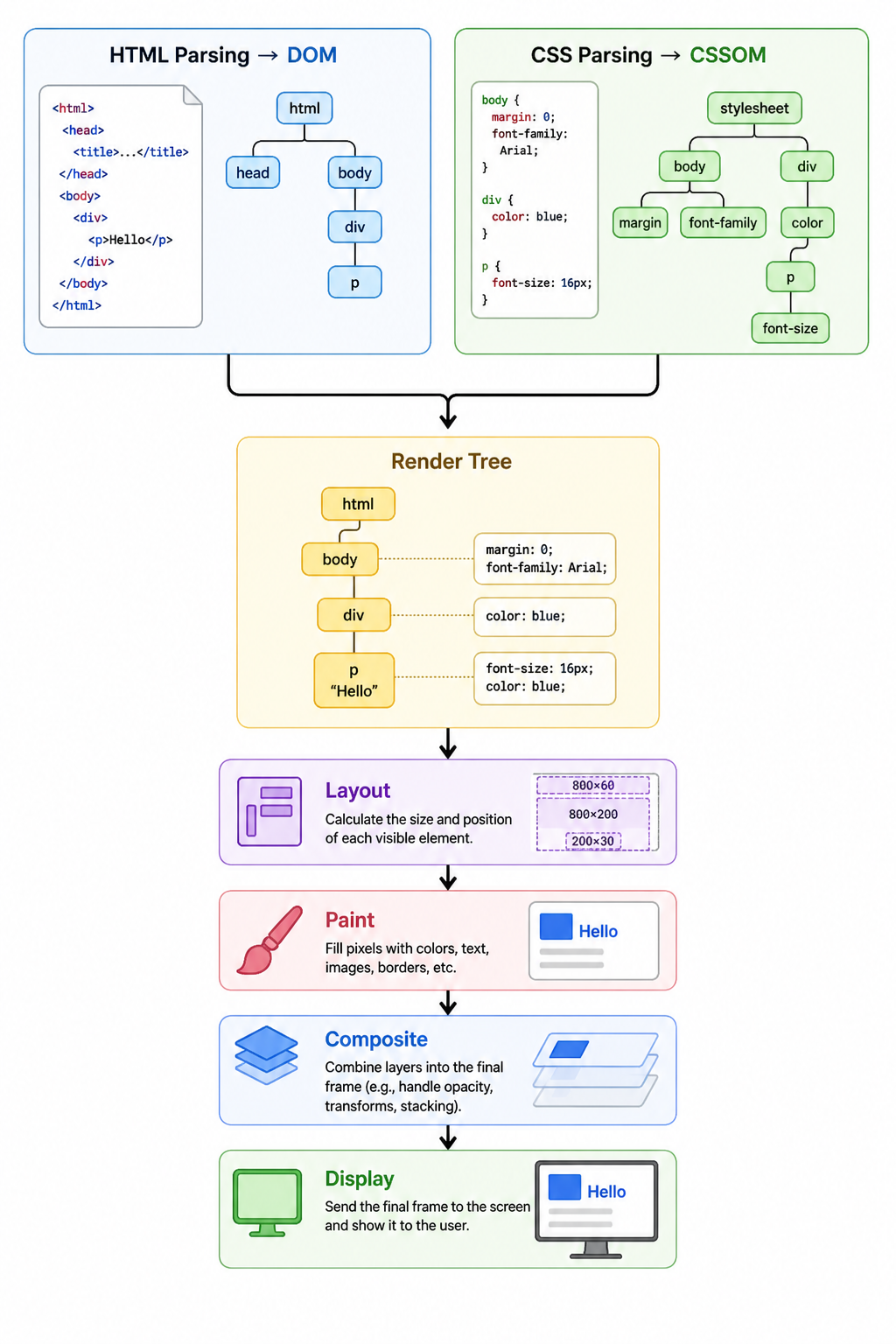
JavaScript can interrupt this pipeline at any point. When the browser encounters a script tag, it pauses HTML parsing to fetch and execute the script, because scripts may modify the DOM or CSSOM before rendering continues.
The Critical Rendering Path
The critical rendering path is the sequence of steps the browser must complete before it can display any content to the user. The shorter and lighter this path, the faster the page appears. Optimising the critical rendering path is one of the highest-impact performance improvements you can make.
Not all resources block rendering equally. Understanding which resources block the pipeline and why helps you make better decisions about how to load them.
| Resource | Blocks Rendering? | Reason |
|---|---|---|
| CSS (in <head>) | Yes (render-blocking) | The browser needs the complete CSSOM before it can build the render tree and paint anything |
| JavaScript (regular) | Yes (parser-blocking) | Scripts may read or modify the DOM and CSSOM, so parsing stops until the script finishes executing |
| JavaScript (defer) | No | The script is downloaded in parallel and executes only after HTML parsing is complete |
| JavaScript (async) | Partial | The script downloads in parallel but executes as soon as it is ready, briefly pausing the parser |
| Images | No | Images do not block parsing or the initial render, though they may shift layout if dimensions are not set |
| Web Fonts | Partial (FOIT risk) | Can cause a Flash of Invisible Text while the font file loads if not handled correctly |
Reflow, Repaint, and Composite
After the initial page load, the browser must update the display whenever the page changes, whether due to user interaction, animations, or JavaScript modifying the DOM. These updates fall into three categories with very different performance costs.
| Operation | What Triggers It | Performance Cost |
|---|---|---|
| Reflow (Layout) | Changing element dimensions, position, font size, or DOM structure | Expensive. The browser must recalculate the layout of the affected element and all its children, then repaint and composite. |
| Repaint | Changing visual properties that do not affect geometry, such as color, background, or box-shadow | Cheaper than reflow. The browser skips layout recalculation and just redraws the affected pixels. |
| Composite Only | CSS transform and opacity changes | Cheapest. The browser skips layout and paint entirely and handles the change on the GPU, making it ideal for animations. |
The goal of performance-conscious CSS and JavaScript is to push as many visual changes as possible into the composite-only category, avoiding layout recalculation and repainting wherever feasible.
What Is Layout Thrashing
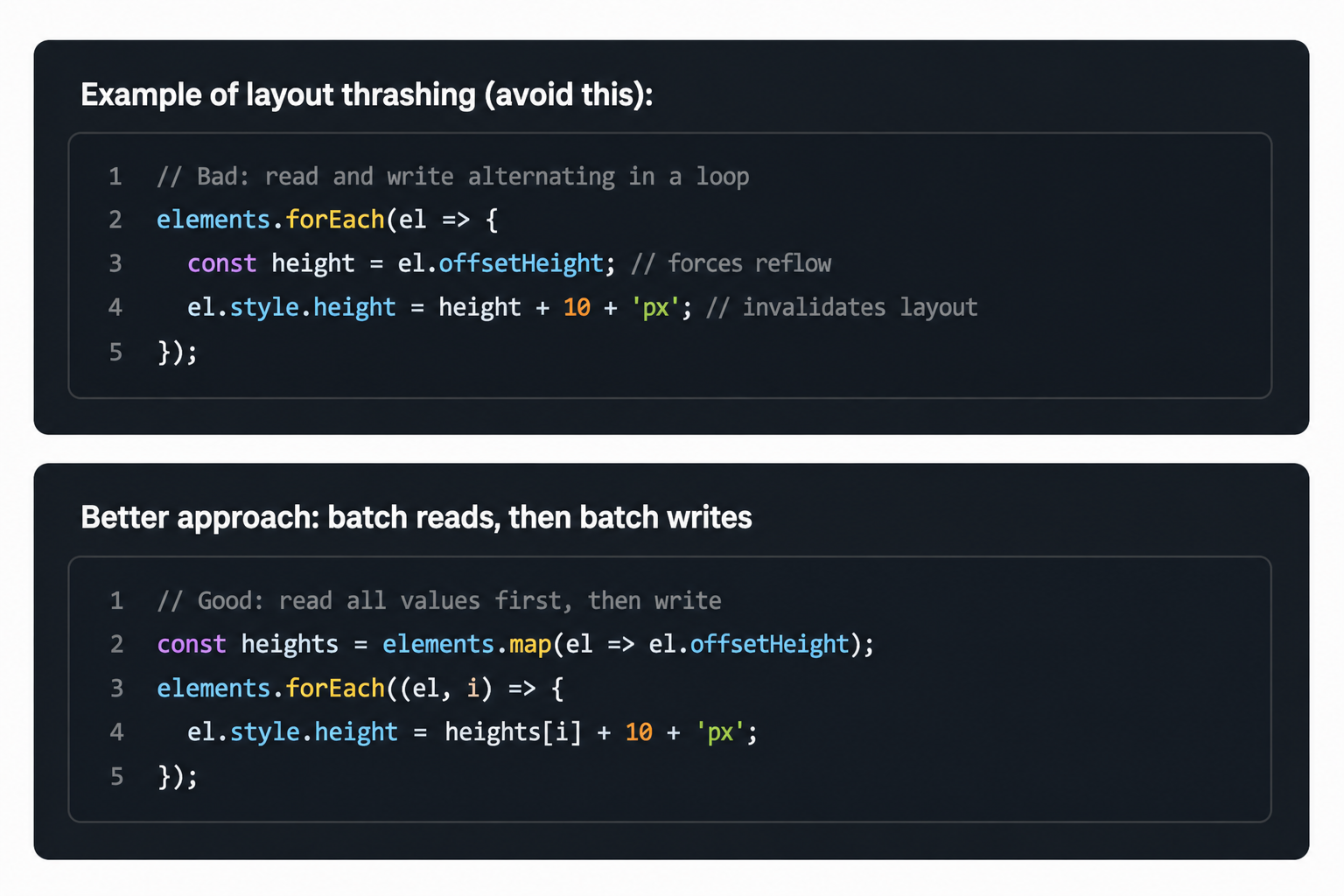
Layout thrashing happens when JavaScript repeatedly reads and then writes layout properties in a tight loop. Each write invalidates the current layout, and each read forces the browser to recalculate it immediately before it can respond. This creates a cycle of forced synchronous reflows that can cause serious frame rate drops.
Performance Tips Based on Rendering
Knowing how the pipeline works leads directly to practical optimisation techniques. Most performance bottlenecks on the web trace back to one of the rendering stages described above.
- Place CSS in
<head>so the CSSOM is ready before the render tree is built. Place JavaScript at the end of<body>or use thedeferattribute to avoid blocking the parser. - Keep the DOM as small as possible. Fewer elements mean faster layout calculations, especially on low-powered devices.
- Use CSS
transformandopacityfor animations rather than properties liketop,left,width, orheight, which trigger reflow on every frame. - Avoid reading layout properties such as
offsetHeight,getBoundingClientRect, orscrollTopinside loops that also write styles. Batch reads and writes separately. - Use
will-change: transformon elements you know will animate to hint to the browser that it should promote them to their own GPU layer in advance. - Always set explicit
widthandheightattributes on images to prevent layout shifts after they load. - Lazy load off-screen images with the
loading="lazy"attribute to reduce initial page weight and speed up the first paint.
Core Web Vitals and Rendering
Google's Core Web Vitals are a set of metrics that measure real-world rendering performance. Three of them relate directly to the rendering pipeline:
- Largest Contentful Paint (LCP): Measures how long it takes for the largest visible element on the page to render. Render-blocking CSS and JavaScript delay LCP directly.
- Cumulative Layout Shift (CLS): Measures how much visible content shifts position after the initial paint. Images and embeds without defined dimensions are a common cause.
- Interaction to Next Paint (INP): Measures how quickly the browser responds visually to user interactions. Heavy JavaScript that triggers reflow during event handlers raises INP.
Frequently Asked Questions
- What is the DOM?
The Document Object Model is a tree representation of your HTML document that browsers and JavaScript can read and modify. Every element, attribute, and text node in your HTML becomes a node in the DOM tree. When JavaScript changes the DOM, the browser must update the render tree and potentially trigger layout and repaint. - What is a layout shift and why does it matter?
A layout shift, measured by the Cumulative Layout Shift metric, occurs when visible elements move position after the page has already painted. This often happens when images load without defined dimensions, causing surrounding content to jump. Layout shifts create a frustrating experience for users and negatively affect Core Web Vitals scores. - Why does render-blocking CSS hurt performance?
The browser cannot build the render tree until the CSSOM is complete, and it cannot build the CSSOM until all CSS in the document is downloaded and parsed. Large or slowly loading stylesheets delay the First Contentful Paint, meaning users stare at a blank screen for longer. Splitting critical CSS from non-critical styles and inlining above-the-fold CSS can reduce this delay. - What is the difference between defer and async for scripts?
Both attributes allow the browser to download the script without blocking HTML parsing. The difference is in when the script executes. A deferred script waits until HTML parsing is fully complete before running, which preserves the order of multiple deferred scripts. An async script executes as soon as it finishes downloading, regardless of whether parsing is done, which can cause order issues if scripts depend on each other. - What causes a Flash of Invisible Text?
A Flash of Invisible Text (FOIT) occurs when a web font is used in CSS but the font file has not yet loaded. The browser hides the text until the font is available, leaving a blank space. You can prevent this by usingfont-display: swapin your font face declaration, which tells the browser to show the fallback font immediately and swap in the custom font once it loads.
Conclusion
Understanding how browsers render pages gives you direct, actionable insight into performance optimisation. The pipeline moves from parsing HTML and CSS, through building the render tree and calculating layout, to painting and compositing the final display. Delays and inefficiencies at any stage affect what users see and how fast they see it. By managing render-blocking resources, avoiding unnecessary reflows, batching DOM reads and writes, and using GPU-friendly animations, you can significantly improve both perceived and measured page speed. Continue with lazy loading and HTTP caching for a complete performance toolkit.